How to Choose a Free Online Photo Slideshow Maker Without Watermarks
Creating a photo presentation should be a straightforward process, yet many users find themselves frustrated after spending hours arranging images and selecting music, only to hit a paywall at the final export stage. The internet is filled with tools claiming to be a "free online photo slideshow maker," but the reality often involves hidden limitations, degraded video quality, or massive company logos stamped across your family memories.
Finding a platform that genuinely allows you to upload photos, sync them to music, and download a clean video file requires navigating a complex landscape of "freemium" software. Whether you are compiling a quick social media recap, organizing a professional wedding presentation, or managing a high-volume memorial tribute, the right tool depends entirely on your specific technical requirements.
If you need to start immediately, these platforms rank among the top options for specific use cases as of 2026:
- For Zero Watermarks & High Design: Canva offers a genuinely free export, provided you stay within their storage limits.
- For Automatic Music Beat-Syncing: Pholody uses AI to align your photo transitions perfectly with the tempo of your uploaded audio track.
- For Massive Volumes (100+ Photos): The Microsoft PowerPoint "Photo Album" feature remains a highly effective workaround to bypass browser lag when handling hundreds of high-resolution images.
Which Tools Actually Offer a Free Slideshow Without a Watermark?
The most common complaint in video editing communities is the "freemium trap." A platform allows you to use all its features for free, but when you click download, you are forced to either pay a subscription fee or accept a large watermark. Companies utilize this model because rendering video requires significant server processing power, which costs them money.
However, a select few platforms offer genuinely free exports without branding, usually by imposing limits on file size, resolution, or cloud storage space instead.
| Platform | Max Photo Limit | Watermark Status | Music Sync | Ideal Use Case |
|---|---|---|---|---|
| Canva | 1GB total storage | None | Manual | Design-heavy presentations |
| FotoSlider | Device storage limit | None | Manual | Mobile-first creation |
| Pholody | Varies by track length | None | Automated AI | Music-driven videos |
| Clideo | 500MB per file | Requires Account | Manual Looping | Secure, encrypted uploads |
Understanding Canva's Video Upload Limits
Canva is widely regarded as one of the most accessible design tools available. Their free tier allows you to export MP4 videos without any Canva branding. They achieve this by utilizing their "Magic Studio" AI to streamline the design process while placing hard caps on the backend data.
According to their current documentation, free users are restricted to 1GB of total video upload storage and individual images cannot exceed 250 million total pixels. If you are uploading raw files directly from a modern DSLR camera, you may hit this limit faster than expected. To optimize your workflow in Canva, it is highly recommended to compress your images to standard web resolutions (like 1920x1080) before uploading them to the platform.
FotoSlider's Mobile-First Approach
For users who prefer to work directly from their smartphones, FotoSlider offers a robust alternative. Because it operates as an application rather than a purely browser-based tool, it leverages your device's local processing power rather than relying on cloud servers. This allows them to offer high-quality video exports without forcing a watermark onto the final product, making it a popular choice for quick social media edits.
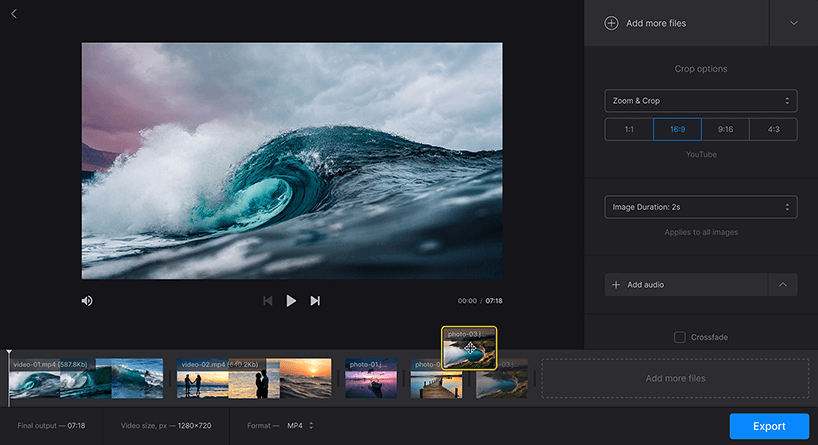
Image source: Clideo
How to Handle More Than 100 Photos Without Crashing Your Browser
When creating a presentation for a major life event—such as a milestone anniversary, a graduation, or a memorial service—users frequently need to compile upwards of 100 to 200 images. This introduces a significant technical hurdle: browser lag.
The Browser Memory Problem
Online video editors rely on web technologies like WebGL and HTML5 Canvas to render images in real-time. When you load 150 high-resolution photos into a Chrome or Safari tab, the browser's RAM usage spikes dramatically. This often results in the page freezing, audio desyncing, or the browser crashing entirely before you can save your work. While tools like Kapwing offer specific support for bulk uploads, many standard free tools struggle under the weight of massive file volumes.
The Microsoft PowerPoint "Photo Album" Hack
To bypass browser limitations entirely, many experienced creators turn to a feature hidden within Microsoft PowerPoint. The "Photo Album" tool allows you to instantly generate a slide deck from a massive folder of images, automatically resizing them to fit the screen. You can then export this deck directly as an MP4 video file.
Here is how to execute this bulk-upload workflow:
- Organize Locally: Place all your desired photos into a single folder on your computer and ensure they are numbered in the order you want them to appear (e.g., 001.jpg, 002.jpg).
- Launch the Tool: Open PowerPoint (either the desktop application or the free web version) and start a Blank Presentation.
- Insert Album: Navigate to the top ribbon, click Insert, and select Photo Album > New Photo Album.
- Bulk Select: Click the "File/Disk" button, navigate to your organized folder, press Ctrl+A (or Cmd+A on Mac) to select all images, and click Insert.
- Format and Create: Choose "Fit to slide" in the picture layout options and click Create. PowerPoint will instantly generate a slide for every single photo.
- Export to Video: Go to File > Export > Create a Video. Set your desired timing (e.g., 4 seconds per slide) and export it as an MP4.
Hybrid Workflows with Vimeo
If PowerPoint's built-in transitions feel too corporate, you can utilize a hybrid workflow. After using PowerPoint to quickly organize and size your 100+ photos, you can import that saved file into Vimeo's Slideshow Templates. Vimeo's platform is optimized for video hosting and allows you to apply professional-grade transitions and licensed music to your bulk-imported slides, offering a strong balance between speed and aesthetic quality.
How to Sync Your Slideshow Transitions to the Beat of the Music
The difference between an amateur presentation and a professional-looking video often comes down to audio synchronization. When photo transitions occur randomly, the video can feel disjointed. When images change exactly on the downbeat of the background track, the presentation feels cohesive and emotionally impactful.
Pholody's Smart Alignment Technology
Achieving perfect beat-sync manually requires tedious timeline adjustments, trimming clips down to the millisecond. Pholody addresses this specific pain point by offering an automated solution. Their proprietary engine analyzes the waveform of your uploaded audio track (such as an MP3 or WAV file) and identifies the rhythmic peaks.
Once the analysis is complete, Pholody automatically adjusts the duration of your photos so that every transition—whether a hard cut or a crossfade—lands precisely on a musical beat. This feature sets a high standard for free browser-based tools, as beat-syncing is typically reserved for expensive desktop software.
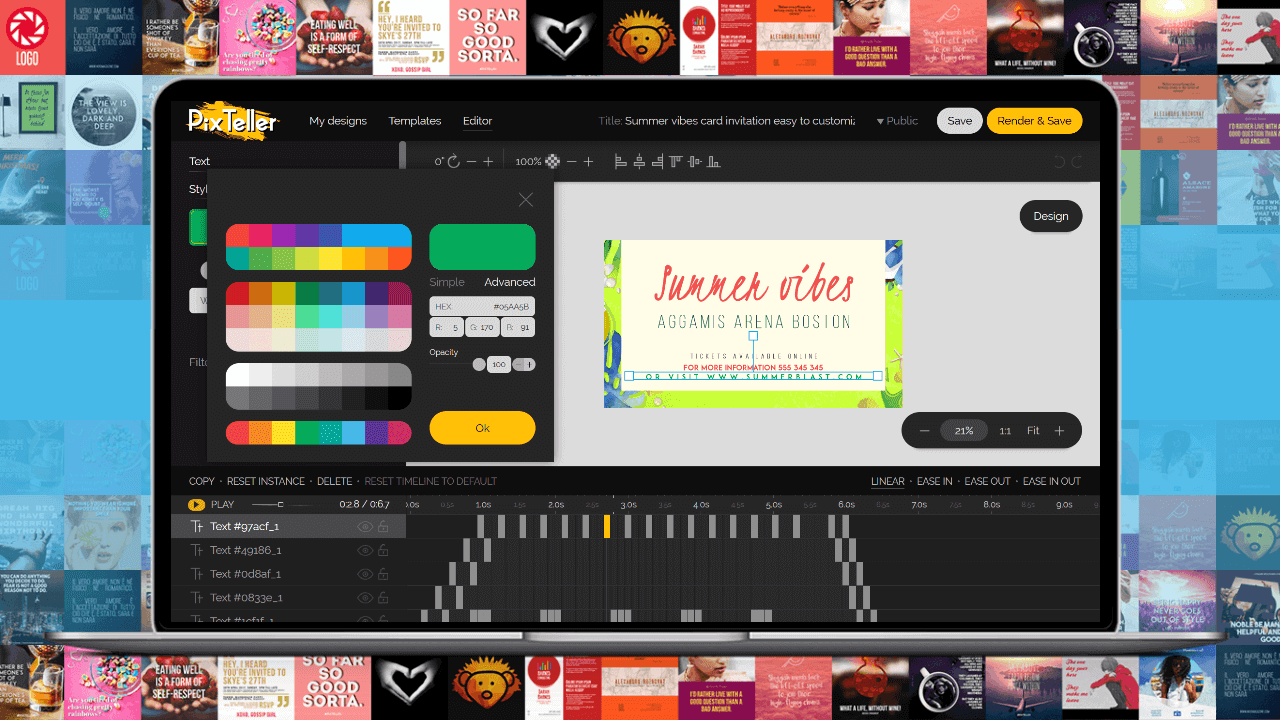
Image source: PixTeller
Clideo's Audio Looping and Trimming Controls
If you prefer manual control over your audio, Clideo provides a highly intuitive interface for sound management. A common issue when making longer slideshows is that the video outlasts the song. Clideo offers a simple "Loop" toggle that seamlessly restarts the audio track without jarring silent gaps. Conversely, if your song is longer than your video, their trimming tools allow you to fade the music out smoothly exactly as the final image disappears.
Proven Practices for Creating Professional Slideshows for Special Events
The context in which your video will be viewed should dictate your editing choices. A fast-paced TikTok recap requires a vastly different approach than a tribute video played at a formal gathering.
"When making a memorial video, keep it simple. Don't use crazy star-wipe transitions or fast cuts. Stick to slow crossfades, keep each photo on screen for at least 4 seconds so older relatives can actually see it, and use instrumental music. The photos are the focus, not the editing."
— Advice commonly shared in video editing communities regarding event presentations.
Memorial and Funeral Presentations
For memorial services, the priority is respect and visibility. Attendees are often viewing the screen from a distance. Industry standard timing suggests leaving each photo on screen for 4 to 6 seconds. Avoid rapid panning effects (often called the Ken Burns effect) if they move too quickly, as this can cause motion sickness on large projector screens. Stick to simple "Fade to Black" or "Crossfade" transitions.
Wedding Receptions and Rehearsal Dinners
Wedding presentations typically blend romantic pacing with upbeat celebration. These videos benefit greatly from the beat-syncing techniques mentioned earlier. It is highly recommended to divide the video into three distinct "chapters" (e.g., Partner A growing up, Partner B growing up, and the couple together), using a different song for each section to naturally shift the mood.
The 3-Second Hook Rule for Social Media
If your goal is to publish on platforms like Instagram Reels, TikTok, or YouTube Shorts, traditional pacing rules do not apply. Vimeo's creator guidelines emphasize the "Hook Rule"—you must capture the viewer's attention within the first three seconds.
- Aspect Ratio: Always set your canvas to 9:16 (vertical) before you begin editing.
- Pacing: Keep photo durations short—between 1.5 and 2.5 seconds per image.
- Text Captions: A significant portion of mobile users browse with their sound muted. You must include on-screen text to provide context if the music is unavailable.

Image source: Animaker
Why Privacy and Data Security Matter for Your Personal Photos
An often-overlooked aspect of using a "free online photo slideshow maker" is data privacy. When you use a browser-based tool, you are uploading your personal family photos, pictures of your children, or sensitive event images to a third-party server.
Understanding Cloud Storage Risks
Many free platforms monetize their services by training AI models on user-uploaded content or by retaining files on their servers indefinitely to encourage you to create an account. Before uploading highly personal images, it is crucial to check the platform's deletion policy. Tools that process the video locally on your device (client-side processing) are generally safer than those that require a server upload.
Clideo's Premium Encryption
For users handling sensitive corporate data or deeply personal family archives, Clideo stands out by explicitly highlighting their premium encryption protocols. They guarantee that files uploaded to their servers are encrypted and automatically deleted after a set period, ensuring that your private media does not remain accessible on the web. If privacy is your primary concern, prioritizing platforms with transparent data handling policies is essential.
Frequently Asked Questions
How can I make a photo slideshow with music for free without a watermark?
To avoid watermarks entirely, use platforms like Canva or FotoSlider. Canva allows free MP4 exports without branding as long as you use your own uploaded media and stay within their 1GB storage limit. FotoSlider, available as a mobile app, processes the video on your device, allowing for watermark-free exports directly to your camera roll.
What is the easiest free online slideshow maker for beginners?
Canva is widely considered one of the most beginner-friendly options due to its drag-and-drop interface and massive library of pre-made templates. You do not need any prior video editing experience; you simply select a template, drag your photos into the placeholder frames, and click export.
Can I make a slideshow online without downloading any software?
Yes, browser-based tools like Clideo, Pholody, and Canva operate entirely within web browsers like Chrome, Safari, or Edge. All the rendering and processing happen in the cloud, meaning you do not need to install any heavy software on your computer's hard drive.
Is there a free slideshow maker that allows more than 100 photos?
While many browser tools crash when handling over 100 high-resolution photos, you can use the free web version of Microsoft PowerPoint. By utilizing the "Insert Photo Album" feature, you can bulk-import hundreds of images instantly and then export the entire presentation as an MP4 video file.
How do I add my own music to an online photo slideshow?
Most online makers feature an "Audio" or "Upload Media" tab on their timeline interface. You can upload standard audio files (typically MP3 or WAV formats) from your computer. Tools like Clideo will then allow you to trim the audio, adjust the volume, or loop the track to match the length of your visual presentation.
What is the best aspect ratio for a YouTube slideshow?
For standard YouTube videos viewed on desktop or smart TVs, you should always use a 16:9 aspect ratio (widescreen). If you are creating content specifically for YouTube Shorts, TikTok, or Instagram Reels, you must change your canvas settings to a 9:16 aspect ratio (vertical) before you begin editing.
How do I make a slideshow on a mobile phone?
You can use dedicated mobile applications like FotoSlider, which are optimized for touch screens. Alternatively, platforms like Canva offer robust mobile apps that sync with their web versions, allowing you to start a project on your phone and finish it later on your desktop computer.
Final Thoughts
Creating a memorable photo presentation doesn't require expensive software, but it does require choosing the right tool for your specific project constraints. By understanding the limitations of browser-based editors and utilizing smart workarounds, you can produce professional-quality videos entirely for free.
- Verify export limits first: Always check a tool's watermark policy and resolution caps before you spend time uploading your media.
- Pre-organize your files: Place all photos in a single numbered folder on your desktop to drastically speed up the bulk upload process.
- Match pacing to the platform: Use 4-6 second durations for formal event presentations, and fast 2-second cuts for social media content.
- Leverage AI for audio: Utilize tools like Pholody to automatically sync your image transitions to the beat of your music track.
- Use the PowerPoint hack for bulk: If you have over 100 photos, bypass browser memory limits by generating a PowerPoint Photo Album and exporting it as an MP4.
- Prioritize privacy: Choose platforms with clear encryption and deletion policies if you are working with sensitive family photographs.
Before starting your next project, take five minutes to resize your images to standard web resolution to ensure a smooth, crash-free editing experience.