How to Find and Set Up Future Aesthetic Desktop Backgrounds in 4K and 8K
Achieving a high-fidelity future desktop aesthetic requires more than just downloading an image. By default, Windows compresses desktop backgrounds to 85% quality, causing 4K and 8K images to look blurry. To fix this, users must apply a specific Registry edit to force 100% lossless rendering. Once fixed, you can customize your workspace using sub-genres like Cyberpunk, Solarpunk, or Minimalist Tech, and enhance the look further with tools like Rainmeter and Lively Wallpaper.
The desktop environment has evolved from a purely functional workspace into a highly personalized digital ecosystem. According to design historians tracking the evolution of desktop wallpaper design, backgrounds have transitioned from simple tiled patterns to high-definition canvases that directly influence user mood and productivity. Today, the "future aesthetic" ranks among the top choices for tech enthusiasts, developers, and designers looking to create an immersive workspace.
However, simply downloading a high-resolution image is rarely enough. Modern operating systems apply hidden compression algorithms that degrade image quality, and standard 16:9 images often fail to scale correctly on modern ultrawide monitors. This article details the technical steps required to bypass operating system compression, explores the distinct sub-genres of futuristic design, and provides actionable methods for building a cohesive, high-tech desktop environment.
Why Your Desktop Background Looks Blurry and How to Fix It
A common frustration among PC users is downloading a pristine 4K or 8K wallpaper, setting it as the desktop background, and immediately noticing pixelation or color banding. This is not a hardware failure; it is an intentional software limitation.
The 85% Compression Problem
To conserve system memory and improve boot times on older hardware, Windows automatically compresses JPEG images applied as desktop backgrounds. Community testing and documentation confirm that Windows reduces wallpaper quality to 85% of the original file. While this compression was necessary during the era of mechanical hard drives and limited RAM, it actively degrades the visual fidelity of modern 4K and 8K artwork, introducing noticeable artifacts in smooth gradients (such as neon glows or dark skies).
The Lossless Registry Fix
To force Windows to render your future aesthetic backgrounds at 100% quality, you must modify the Windows Registry. This process tells the operating system to bypass the default compression engine entirely.
- Press the Windows Key + R to open the Run dialog box.
- Type
regeditand press Enter to open the Registry Editor. - Navigate to the following path:
HKEY_CURRENT_USER\Control Panel\Desktop - Right-click on the right-hand pane, select New, and choose DWORD (32-bit) Value.
- Name this new value exactly:
JPEGImportQuality - Double-click the new value, change the Base to Decimal, and enter 100 in the Value data field.
- Click OK, close the Registry Editor, and restart your computer.
After the restart, any new wallpaper you apply will be rendered at its native, uncompressed quality.
The PNG Advantage
If you prefer not to edit the Registry, an alternative method is to exclusively use PNG files. Because PNG is a lossless format, Windows handles it differently than JPEGs. However, some users report that Windows 11 still occasionally converts large PNGs to compressed JPEGs behind the scenes. The Registry edit remains the most reliable method for ensuring perfect clarity.
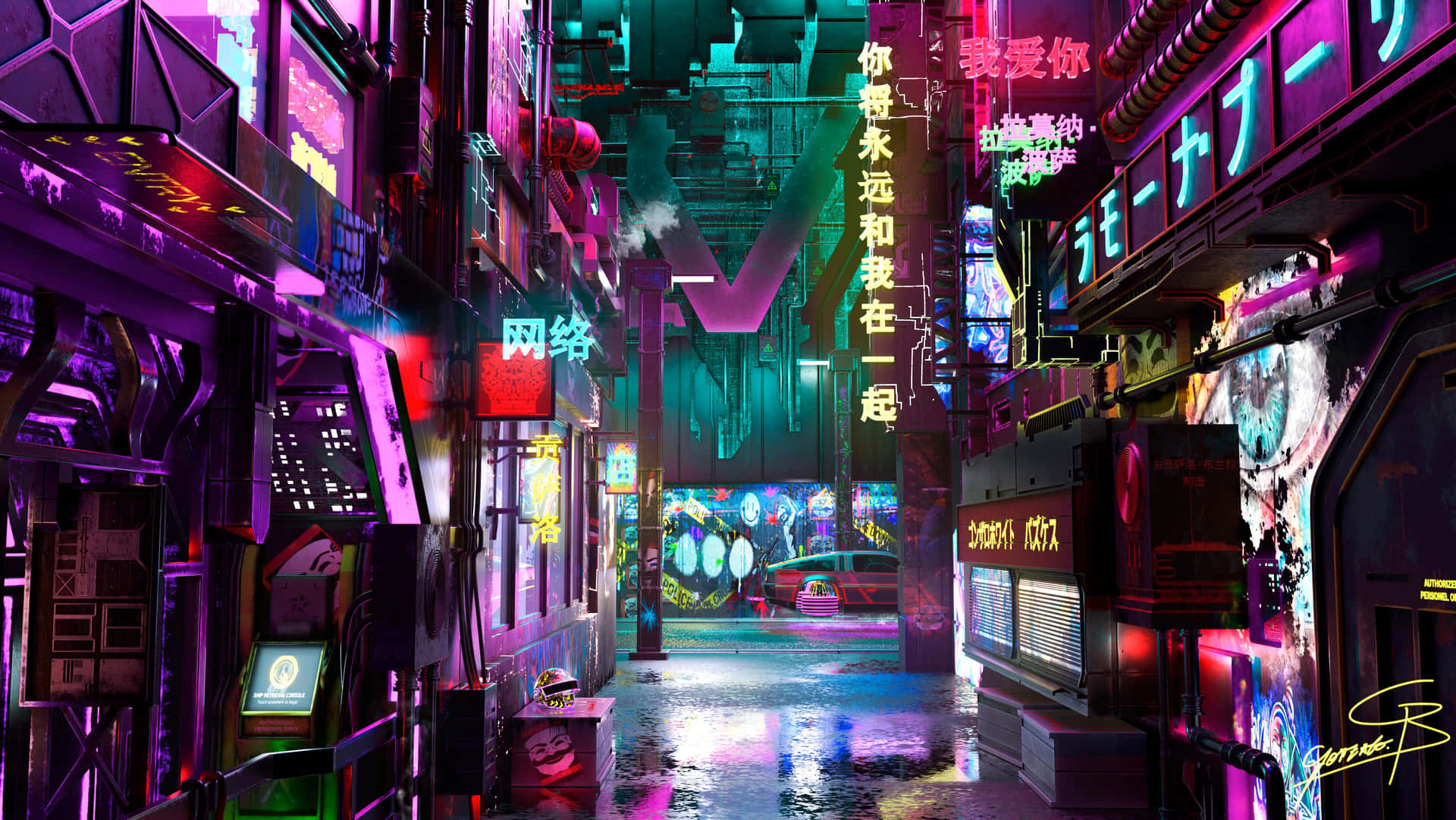
Image source: Wallpapers.com
Which Future Aesthetic Fits Your Workspace Vibe?
The concept of a "future desktop backgrounds aesthetic" is not a single, monolithic style. It encompasses several distinct sub-genres, each catering to different psychological needs and workflow preferences. Selecting the right aesthetic depends heavily on your environment and how you use your computer.
The Neon City (Cyberpunk)
Characterized by high-contrast dark backgrounds, vibrant magenta and cyan neon lights, and dense urban architecture, the Cyberpunk aesthetic is a popular choice for late-night productivity and gaming setups. Because these images are predominantly dark, they reduce eye strain in low-light environments and look exceptionally striking on OLED monitors, where true blacks can be fully realized.
The Minimalist Lab (Frutiger Aero & Tech)
For users who find dense cityscapes distracting, the Minimalist Tech aesthetic offers a cleaner vision of the future. This style relies on stark whites, glass textures, soft ambient lighting, and sterile laboratory environments. It draws heavy inspiration from the "Frutiger Aero" design language of the late 2000s, updated with modern rendering techniques. It is highly effective for daytime workflows that require intense focus and minimal cognitive load.
The Green Future (Solarpunk)
Solarpunk represents a significant shift in futuristic design, moving away from dystopian neon in favor of ecological harmony. This aesthetic combines lush, overgrown greenery with advanced, sweeping white architecture and renewable energy motifs. Solarpunk desktop backgrounds provide a calming, optimistic atmosphere, making them an excellent option for high-stress work environments.
The Retro-Future (Analog Tech)
Ironically, one of the most prominent future aesthetics is rooted in the past. Retro-futurism (or "Cassette Futurism") visualizes the future as it was imagined in the 1980s and 1990s. These wallpapers feature bulky CRT monitors, tactile mechanical buttons, glowing green terminal text, and tape drives. This style appeals heavily to programmers and developers who appreciate the raw, mechanical nature of early computing.
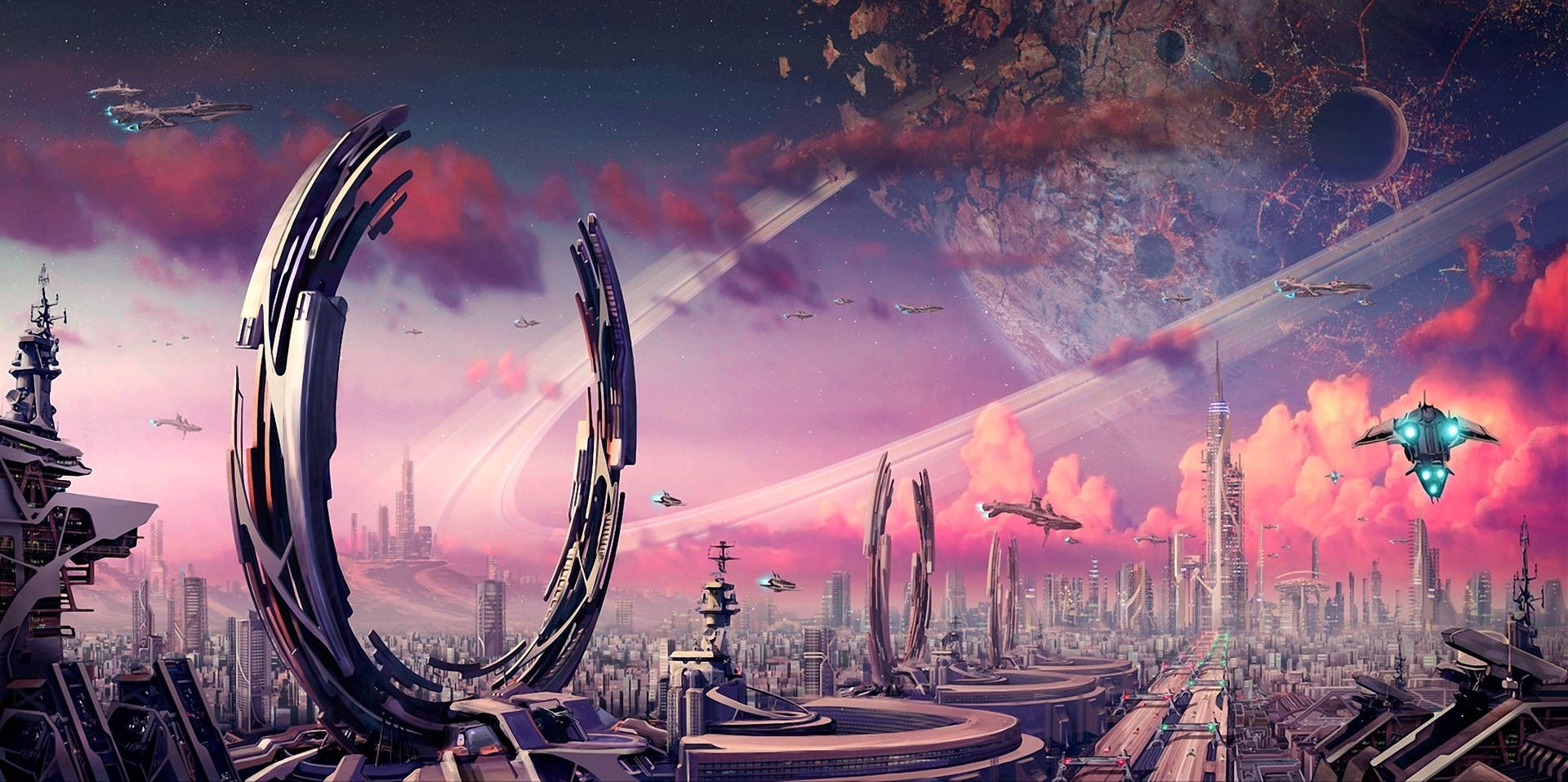
Image source: Wallpapers.com
Where to Find High-Resolution Future Wallpapers for Free
Locating high-fidelity assets requires looking beyond standard image search engines, which often serve heavily compressed, upscaled, or watermarked files. The following repositories and communities provide access to native 4K and 8K files.
Top-Tier Repositories
Dedicated wallpaper platforms have adapted to modern hardware standards. For example, Wallpapers.com offers extensive collections of future desktop backgrounds specifically categorized by resolution, ensuring users can filter exclusively for 4K and 8K assets. Similarly, AI-generation platforms like Magnific provide highly detailed, computationally generated futuristic landscapes that are free to download.
The Unixporn Community and "Ricing"
For users seeking a highly technical aesthetic, the open-source community offers a wealth of resources. On platforms like GitHub and Reddit, the practice of customizing a desktop environment is colloquially known as "ricing." The r/unixporn community is a central hub for this, where developers share incredibly complex, data-heavy desktop setups. Repositories such as the D3Ext Aesthetic Collection host curated, high-quality backgrounds specifically designed to complement terminal windows and system monitors.
Top Future Aesthetic Wallpapers for UltraWide and Multi-Monitor Setups
As monitor technology advances, the standard 16:9 aspect ratio (1920x1080 or 3840x2160) is no longer the only format users need to accommodate. High-end setups frequently utilize UltraWide (21:9) or Super UltraWide (32:9) displays.
The 21:9 and 32:9 Challenge
Applying a standard 16:9 future aesthetic wallpaper to a 21:9 monitor results in one of two undesirable outcomes: the image is either stretched horizontally (distorting the proportions of buildings and planets) or zoomed in to fill the width (cropping out the top and bottom of the artwork). To maintain visual integrity, users must source native UltraWide resolutions, such as 3440x1440p or 5120x1440p.
Curated UltraWide Landscapes
For expansive monitors, sprawling futuristic cityscapes and deep space vistas perform exceptionally well. Unlike portrait-focused character art, landscapes scale naturally across wide fields of view. When searching for multi-monitor backgrounds, look for "panoramic future aesthetics" or use exact resolution filters. Dual-monitor users can also utilize software like DisplayFusion to span a single 8K image seamlessly across two separate 16:9 screens, creating a cohesive command center look.
| Monitor Type | Aspect Ratio | Target Resolution | Ideal Aesthetic Style |
|---|---|---|---|
| Standard HD | 16:9 | 1920 x 1080 | Character art, focused subjects |
| Standard 4K | 16:9 | 3840 x 2160 | Detailed Cyberpunk cities, Minimalist labs |
| UltraWide | 21:9 | 3440 x 1440 | Sprawling Solarpunk landscapes |
| Super UltraWide | 32:9 | 5120 x 1440 | Deep space vistas, panoramic horizons |
How to Set Up Aesthetic Live Wallpapers on Windows 11
Static images are no longer the ceiling for desktop customization. Search data indicates that thousands of users actively seek out "aesthetic live wallpaper desktop" solutions to bring motion to their setups. Animated backgrounds—featuring falling digital rain, moving neon signs, or rotating planets—add a dynamic layer to the future aesthetic.
Recommended Animation Tools
Windows does not natively support animated wallpapers, requiring the use of third-party software. Two applications dominate this space:
- Wallpaper Engine: Available via Steam, this is widely regarded as a top-tier option. It offers a massive, user-generated workshop filled with interactive, audio-responsive futuristic backgrounds.
- Lively Wallpaper: A free, open-source alternative available on the Microsoft Store. It allows users to set videos, GIFs, and web pages as their desktop background with minimal setup.
Performance Impact Considerations
A common concern is whether live wallpapers will slow down system performance or drain laptop batteries. Modern animation tools are highly optimized, but they do require hardware resources.
- Zero GPU usage once loaded
- Negligible RAM footprint
- No impact on laptop battery life
- Ideal for low-spec or older machines
- Requires 1-5% GPU usage
- Consumes 100MB - 500MB of RAM
- Can drain laptop batteries faster
- Can be configured to pause when gaming
To mitigate performance drops, ensure your live wallpaper software is configured to "Pause playback when an application is fullscreen." This ensures that when you launch a game or a demanding productivity app, the animated background stops rendering, freeing up 100% of your system resources.
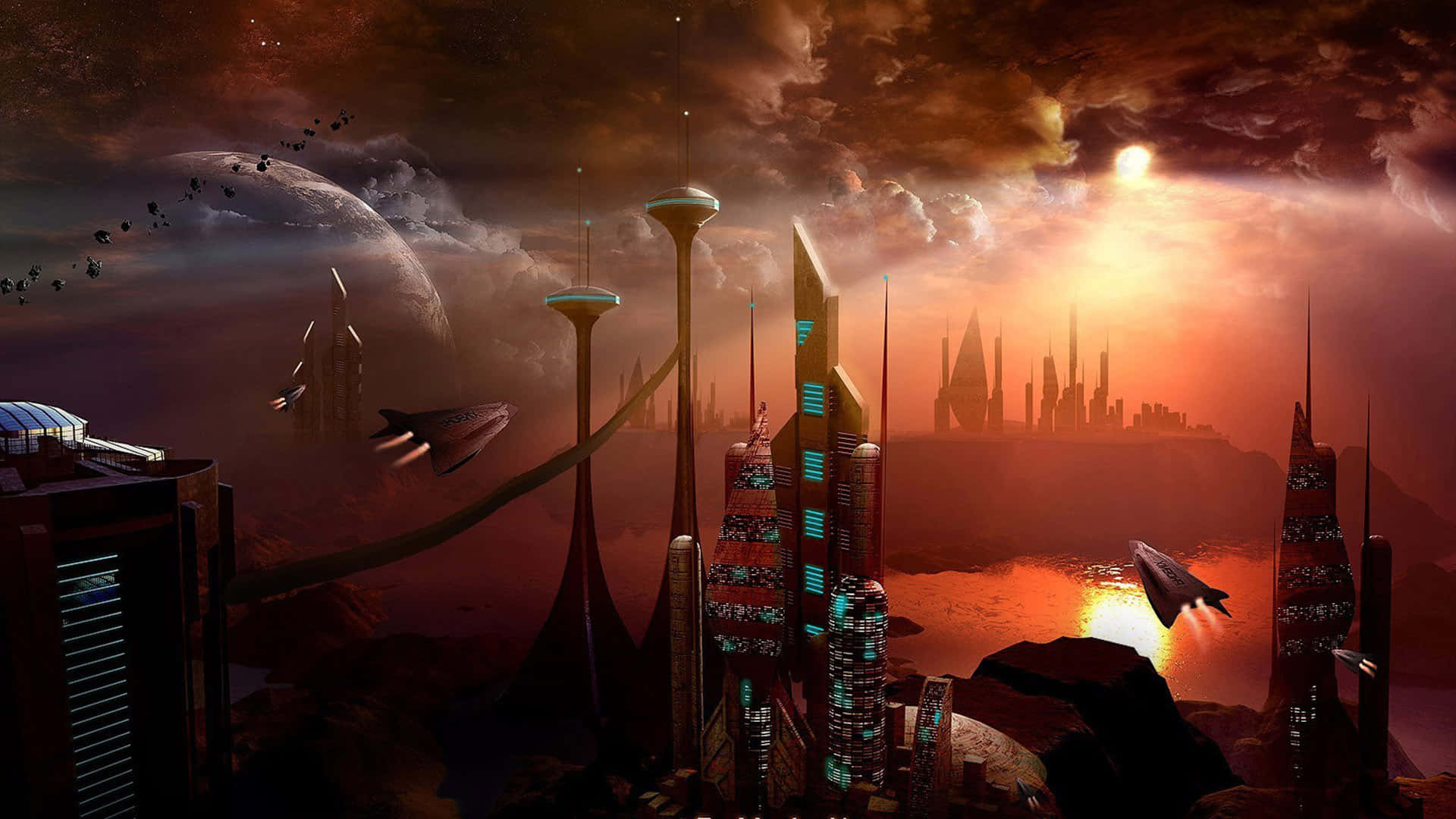
Image source: Wallpapers.com
Create a Total Future Aesthetic Using Customization Tools
Applying a high-resolution background is only the first step. To achieve a truly cohesive future aesthetic, the operating system's interface must match the wallpaper. A glowing Cyberpunk city looks out of place if it is covered by standard, cluttered Windows folders and a solid gray taskbar.
Rainmeter Widgets
Rainmeter is a free desktop customization tool that allows users to display customizable skins on their desktop. For a futuristic look, users frequently install skins that display system diagnostics (CPU/RAM usage), network speeds, and audio visualizers. Skins like "JaxCore" or "Mond" provide sleek, minimalist interfaces that look like heads-up displays (HUDs) straight out of a sci-fi film.
TranslucentTB
The default Windows taskbar often breaks the immersion of a carefully chosen wallpaper. TranslucentTB is a lightweight utility available in the Microsoft Store that allows you to make the taskbar completely transparent, blurred, or acrylic. Setting the taskbar to "Clear" allows your future desktop background to extend seamlessly to the very bottom edge of the monitor.
Icon Packs and Desktop Cleanup
To finalize the look, right-click the desktop, navigate to View, and uncheck Show desktop icons. This hides the clutter of shortcuts and files. If you prefer to keep icons visible, consider replacing the default Windows icons with custom packs (such as neon line-art icons or minimalist white glyphs) that align with your chosen sub-genre.
How to Generate Your Own Unique Future Backgrounds with AI
If curated repositories do not have exactly what you are looking for, AI image generation offers a highly effective way to create a 100% unique desktop background. Tools like Midjourney, DALL-E 3, and Stable Diffusion excel at rendering complex futuristic environments.
Prompt Engineering for Wallpapers
The key to generating a usable wallpaper is specifying the resolution, aspect ratio, and lighting in your prompt. Without these parameters, AI tools often generate square images or stylized art that lacks the detail required for a large monitor.
Copy-Paste Prompts
Here are three tested prompts designed to generate distinct future aesthetics. (Note: If using Midjourney, append --ar 16:9 to the end of the prompt to ensure a widescreen format).
- For Solarpunk: "A sprawling solarpunk city integrated with lush greenery, towering white curved architecture, cascading waterfalls, flying vehicles in the distance, bright sunny day, cinematic lighting, hyper-detailed, 8k resolution, unreal engine 5 render."
- For Cyberpunk: "A dark cyberpunk street level view in the rain, neon signs reflecting in deep puddles, dense cables, glowing magenta and cyan lights, moody atmosphere, hyper-realistic, 8k resolution, volumetric fog."
- For Minimalist Tech: "A futuristic clean laboratory interior, stark white walls, transparent glass displays, soft ambient blue lighting, sterile environment, minimalist design, 8k, architectural photography."
Because AI generators often output images at lower resolutions (like 1024x1024), you may need to run the resulting image through an AI upscaler (such as Topaz Gigapixel or free online alternatives) to reach true 4K dimensions without losing sharpness.
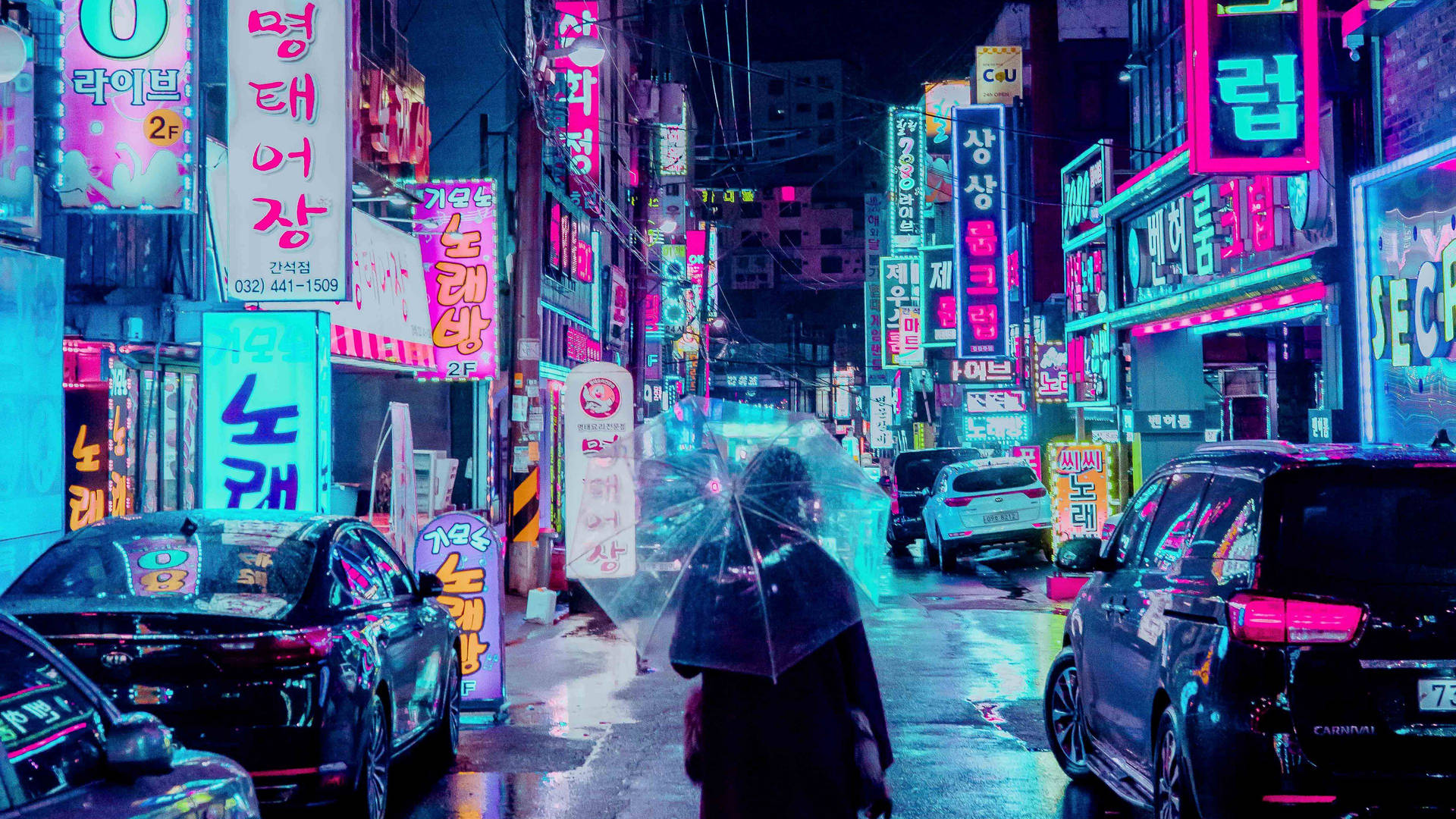
Image source: Wallpapers.com
Frequently Asked Questions
Final Thoughts
Transforming your desktop into a futuristic command center is a multi-step process that goes beyond simply saving an image from the web. By addressing system limitations and utilizing customization tools, you can create an environment that enhances both aesthetics and productivity.
- Match your wallpaper resolution to your monitor (4K for standard, 3440x1440p+ for UltraWide).
- Apply the Registry compression fix to bypass Windows' default 85% quality downgrade.
- Choose a specific sub-genre (Cyberpunk, Solarpunk, Minimalist) that suits your workflow and lighting environment.
- Install tools like Lively Wallpaper if you want to introduce dynamic motion to your background.
- Customize your interface with Rainmeter widgets and TranslucentTB to complete the total aesthetic look.
- Generate custom assets using AI prompt engineering if you cannot find the exact landscape you envision.